
Photo by netdude21
This was a Christmas gift from my brother, can you tell that I’m excited?
Apparently, Glen liked his Christmas gift this year. You can never go wrong with an iPod.

Photo by netdude21
This was a Christmas gift from my brother, can you tell that I’m excited?
Apparently, Glen liked his Christmas gift this year. You can never go wrong with an iPod.
This guys is really good and has a ton of these up on YouTube.
I found this plugin that corrects a pet peeve of mine that I’ve had for a while. The Flickr Blog This To Draft Plugin by Donncha O Caoimh ensures that all of your blogged photos from Flickr come in as drafts, so that you can go in and massage the HTML before publishing.
If you blog photos from Flickr much, and spend time rushing to edit your published picture (to fix HTML, add CSS attributes, etc), grab this plugin to remove the unneeded stress from your life.

Photo by rbieber
We finally got our Evo experience stuff framed and hung up – and when I say "we" I mean Jonna.
Jonna shot over this link about a possible new El Camino coming out. For some reason, I don’t like it as much as the 80’s model.
Something cool for a Sunday. We picked up the Frank Zappa: Dub Room Special DVD yesterday and I enjoyed it quite a bit. I guess I’ll be back on a Zappa kick for a bit.
Well, I got my MacBook updated to Leopard last night. I chose to upgrade over Tiger, despite reading quite a few articles recommending against it like this one. Truth be told, I read those articles after the upgrade process had already been started – so it was kind of too late to turn back.
I’ve had few issues. Leopard did wipe out my printer settings that I worked so hard to figure out (this apparently happened to others as well). I thought there was some extra magic that I had to do, as I set up the printer last night multiple times with no ability to print. As I started to look at it this morning, it wound up the Windows machine went to sleep. Once I woke it up, the printer worked fine. I suppose this would have been an easy thing to check last night but I stopped work and went to bed, opting to let Spotlight and Time Machine do their thing while I got some sleep.
All of my applications seem to work fine. I did have to reinstall the FeedBurner Dashboard Widget, and Twidget seems to be a little flaky, but honestly I can’t tell right now if its the widget or Twitter itself. I also had to update the Cisco VPN Client to version 4.9.01.0080, which I found on MacUpdate.
Overall though, everything looks fine. My impression of Leopard over Tiger at this stage can be best characterized in one word: “eh”. Time Machine is cool and I can see it will make my life much easier than manually backing things up to my external drive. Coverflow in the Finder is cool, but I can’t see a practical use for it. Spaces will be great, if I can figure out how to use it.
I guess its fair to say I just haven’t spent much time with it yet. Time will tell whether it was worth it or not. I’m just glad the machine booted.
Jonna recorded an episode of Oprah in which Dr. Pausch, a Computer Science professor suffering from terminal pancreatic cancer, gives his “farewell lecture”, apparently an exercise at the university where you give a lecture acting as if it was your last. In this case it is. Dr. Pausch provides an extremely inspirational message.
This video is basically a series of excerpts, but inspiring nonetheless.
The university has a page where you can order the lecture on DVD. You can also visit Dr. Pausch’s personal site.
Tom the Architect points to what looks like the full session from his del.icio.us links.
I found one annoyance about Mac OSX. I could not figure out how to set my Mac up to print to our shared printer that is connected to a Windows XP machine.
Well, thats not necessarily true. I figured it out once, but for some reason it just stopped working using the standard printer setup. Since then, I’ve been printing to PDF, emailing the document to myself, and grabbing it on the machine with the printer and printing the PDF. Since we were setting up Jonna’s new Vista machine anyway and working through those connectivity issues, I decided to work on getting printing to work for real.
After culling through a bajillion posts today, I finally figured out how to do it. I figured this ‘pictorial’ could give you all of the steps you need to do without having to go through the effort that I did to get the information.
As an aside, all images were grabbed and marked up using Skitch.
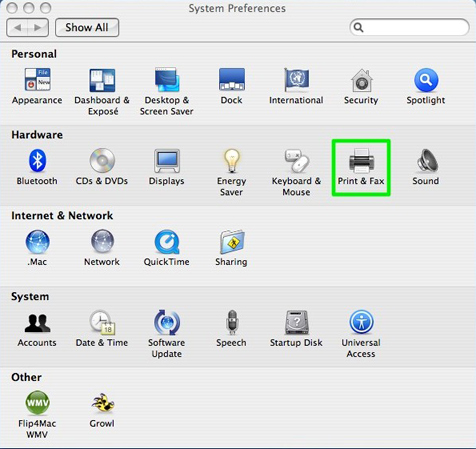

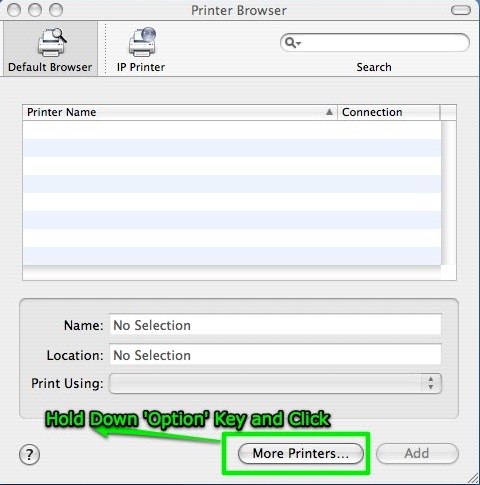
Apple made it very non-intuitive to get to the advanced options. You have to hold down the Option key, then click “More Printers” in order to get to it. This annoyed me. The advanced option should be there no matter what. I shouldn’t have to do anything special to add the smb: address of the printer.
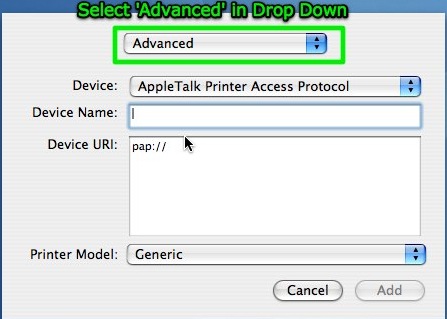

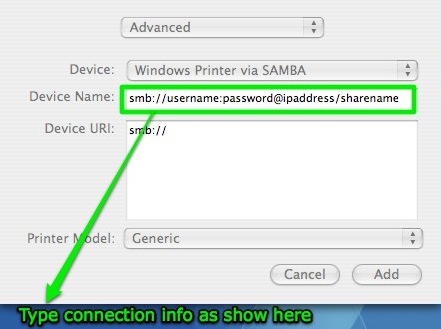
‘username:password’ is the username and password to log into the Windows machine with. IP Address is the IP of the Windows machine with the printer, and finally share name is the name you gave to the printer when you shared it.
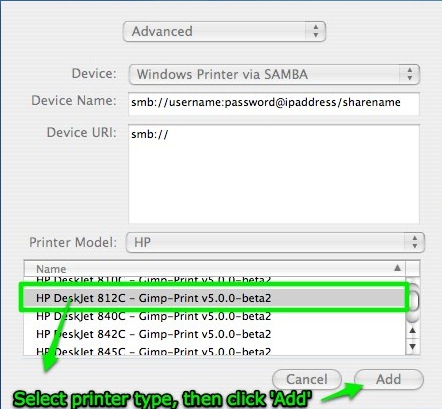
I hope this “graphical representation” of the process helps you get your shared printers up and running. This is what I needed. Rather, I had to read through many false starts and theories before getting to the meat of the issue, which was essentially getting to the ‘Advanced’ options in the print manager. Now you know the secret. Happy printing!
 Bieber Labs